Mortal Shell II Best Settings — Fix Motion Sickness, Camera Modes & Controller Prompts
Published 2026-09-174 min read
Camera auto-alignment is the number one cause of motion sickness in Mortal Shell II. Our recommended settings cover the Action camera mode, sensitivity, controller prompt styles, and the motion-blur toggle that settles most stomachs.
Mortal Shell II's camera is the most common complaint in otherwise glowing player feedback — not because it is broken, but because a few default settings quietly fight sensitive stomachs. If the game makes you queasy, the cause is almost always one of three culprits: automatic camera correction, the camera mode, or sensitivity. Every one of them has a fix in the options menu, and the whole reconfiguration takes about two minutes.
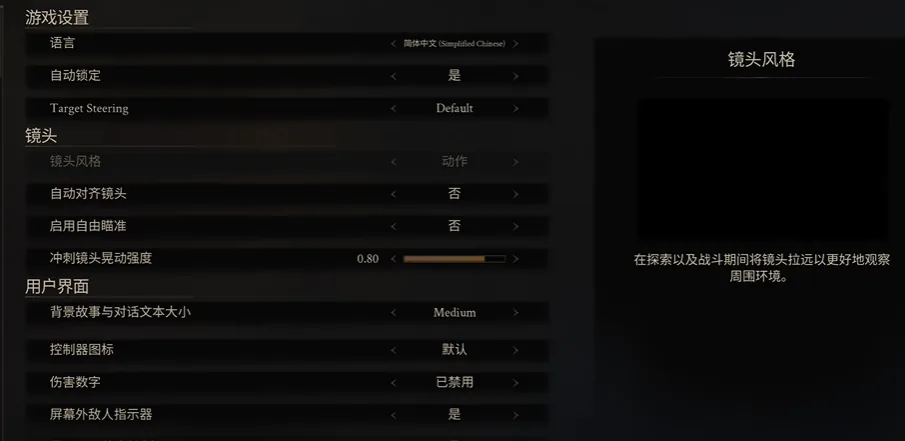
Camera mode: pick Action, not Calm
The game ships with two camera modes. Calm keeps the camera tighter over the shoulder, which feels cinematic for about ten minutes and then starts to press on your inner ear. Action pulls the view further back and opens up the field of view, which reduces the tunnel-vision effect that triggers discomfort for most people. If you are prone to motion sickness, start with Action — you can always switch later on feel.
Turn off automatic camera alignment
This is the headline fix. Auto-alignment forcibly swings the camera back behind your character, yanking the view around without your input — the single most nausea-inducing element in the game. Switch it off and steer the camera yourself. Most players who report feeling sick report the problem evaporating after this single change.
Lower the camera sensitivity
Sensitivity here is a single shared slider — there is no separate X-axis and Y-axis tuning. The catch: raising it makes vertical rotation feel disproportionately fast, which reads as jittery and unsettled. Set the slider moderately low and accept slightly slower horizontal turns; your vestibular system will thank you within the first fight.
Controller prompts: match your pad
The controller icon option switches on-screen button prompts between Xbox layout (A/B/X/Y) and PlayStation 5 layout (triangle/circle/cross/square). Whichever pad is actually in your hands, set the prompts to match — fighting translated muscle memory mid-combat is its own kind of discomfort.
Two bonuses outside the camera menu
- Disable motion blur. It is in the graphics settings rather than the camera menu, and disabling it removes a constant low-level smearing effect that sensitises your eyes during sprints and camera swings.
- Hold the frame rate steady. A locked, stable frame rate matters more for comfort than a higher average one. If your rig wavers, capping the framerate or dropping one quality tier usually steadies it.
Keep reading: